Current Status

Not Enrolled

Price

Free

Get Started

How to Improve Your Online Experience

DOWNLOAD SPEEDS
Check your download and upload speeds
before the class from the exact location in your house where you will be using your computer.  For speaking, the upload needs to be at least 5mbps.  For viewing and listening, the download speed needs to be at least 25mbps.  (Go to Speedtest.net and test your speeds.)  

If you do not have these speeds, check how many other devices are connected to your Wi-Fi.  Shutdown most, if not all, of them off during the class.
You can also attach a cable from your modem directly to your computer to discover if that helps without turning off the other devices.

CONNECTION TYPES
Unless you are using the cable from your modem to your computer, do not allow
other video-based usage on your Wi-Fi during the class by others in your home, such as Zoom/Skype calls, YouTube, Netflix, etc.  (Emails are fine.)

AUDIO
If the audio is not syncing with the
Zoom video, your upload or download speed may be too slow.  Unless you can increase these, here is a remedy for this.  Use your phone for voice and turn off the Zoom audio.  To do this, you have a couple options:

  1. After logging into Zoom, click on the arrow beside the Mute button. Go up three lines to where it says: Switch to phone audio.  Click it and dial one of the numbers with your phone.  Then put in the Meeting ID.  Once you hear the sound on your phone, click Mute in the left bottom corner of your Zoom to turn off Zoom audio. 

Before logging into Zoom, set up your phone for syncing with the Zoom video. Dial one of the phone numbers under the Zoom link you were sent. Put in the Meeting ID. Then login to Zoom and click Mute in the bottom left corner.

NO HOT SPOTS
Please do not use your phone as a hotspot. Speeds are unreliable.

SPEAKERS
If you are having difficulty hearing the speaker or people hearing you, please consider using ear buds with a microphone built in.

TURN OFF VIDEO
To turn off your video during a break, by simply click on the camera in the bottom left corner.  Click it again to turn it back on.

CLASS CHATTING
Also, please let us know if there is a discrepancy in your notes and the speaker’s notes by chatting with Michele or the class volunteer during the class or my emailing her.

Current Status

Not Enrolled

Price

Free

Get Started

Video Help & Tutorials

If you do not wish to connect from within your lesson, you can simplify the process if you download Zoom to your computer at www.zoom.us.  It’s free.   If you plan to use your phone, go to your app store and search for Zoom.com or Zoom Video Conferencing and download the app from there.  You can then just use the meeting ID number highlighted above to sign in for the next four weeks

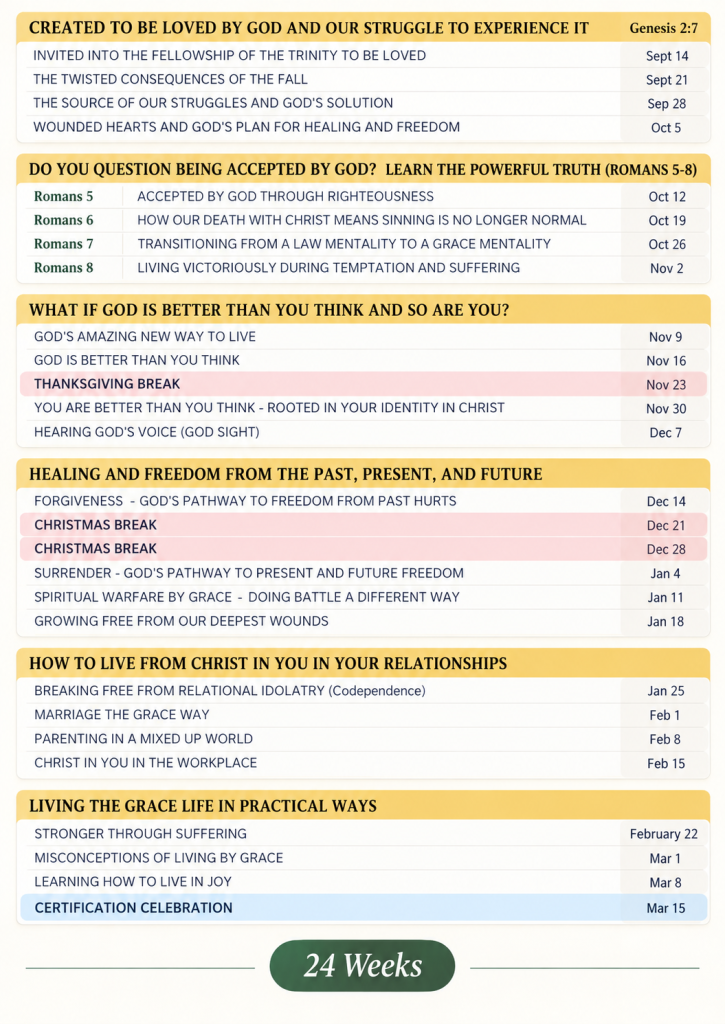
Our class will meet on Thursdays from 9:00 a.m. to 12:00 p.m. (Eastern Daylight Time).
We plan to be online and ready for you to join us 30 minutes BEFORE the start time each week.  PLEASE LOG IN WITH PLENTY OF TIME TO TROUBLESHOOT CONNECTION PROBLEMS.  If you wait to log in until class time, there will be limited availability to help you with any issues that arise.

Current Status

Not Enrolled

Price

Free

Get Started

To Be Reminded, Add Each Event to Your Calendar